Life After Outlook: Gmail. But is it Becoming Oopsmail?

Personal Productivity, SaaS August 1st, 2008

Bernard’s title @ ReadWriteWeb, Breaking Free of Outlook perfectly matches my own sentiment: in fact I called the MS Client Outlook-prison repeatedly.

Unlike Bernard, I escaped from prison in stages:

I’ve never looked back, and am definitely more productive than in my desktop-bound life.  I could see first-hand a lot of people move in the same direction: my How to Import All Your Archive Email Into Gmail guide become an all-time classic, probably approaching 100,000 hits by now.  Gmail’s IMAP support changed everything, so I issued a  Simplified Guide to Importing All Your Archive Email Into Gmail.  A while later Google woke up, and started to offer a migration tool to subscribers of the paid Google Apps version. (Oh, and they are being sued by LimitNone, who claims Google basically stole their gMove product).

But the love-affair with Gmail was not without trouble: I first documented some glitches last spring: Gmail, I Love You - Don’t Let Me Down, then real trouble started a month ort so ago.

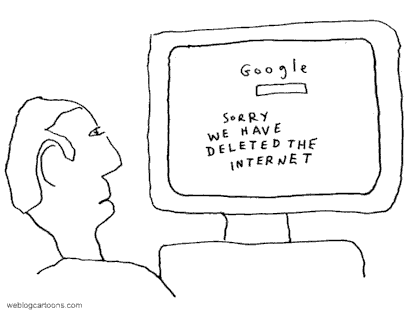
Formerly rock-solid Gmail has been ill a lot lately.  The “Oops…the system encountered a problem (#500) - Retrying in 1:30” error message has became a daily occurance… in fact several times a day.

I somewhat jokingly called “retry now” Gmail’s Penalty Button, when I noticed every time I hit it the wait counter increased by a minute.

Now I have an update: you don’t need the penalty button, the counter increases by itself.  Every time, “reliably”. Basically as soon as you see the Oops error, you might as well close the browser tab (or browser itself), as it won’t recover on its own.  This annoying  error has become the most frequent “feature” of Gmail, to the extent that it really undermines productivity.

I hope Google will fix it.  They MUST.  It’s the crown jewel of Google Apps. In fact without Gmail and Calendar there wouldn’t be Google Apps at all.

Update:  Oops: apparently there’s a real service by the name of Oopsmail.  Obviously I am not referrring to them in the title. (Although… ? :-) )

Zemanta Pixie

Tags: , , , , , , , , , ,

How to Make Outlook Cool. Actually, Kool.

Personal Productivity, SaaS April 20th, 2008

Outlook read backwards is Kooltuo. Wow, it would make a good startup namesmile_wink. No, I did not go crazy, but TechCrunch reports that Microsoft just signed a letter of intent to acquire Xobni. And Xobni = Inbox, backwards.

Not that it’s a surprise: I wish I could predict everything with such certainty. This is what wrote in February, when Bill Gates presented Xobni for Outlook as “the next generation of social networking” at the Microsoft Office Developers Conference:

What does it mean when Bill Gates presents your product, a super-cool Outlook plugin to his crowd of developers?

  1. Gates’s message: now go back and copy this fast. That would be the classic Microsoft style, as many software startups can attest to. It would also put the market introduction to somewhere … around 2015? Unlikely.
  2. Microsoft will acquire Xobni in no time. Sweet and fast deal. Congratulations to the Xobni team and investors!

So, yes, congratulations to the Xobni team! On a personal note, I regret I can’t try Xobni, as I long ago ditched Outlook along with a lot of desktop bloatware, and am in happier land now, using Web-based applications. I’m perfectly happy ( and productive) with the combination of Gmail and the Zoho apps, and if I ever leave Gmail, it will be for another web-mail, not back to the desktop. The air is fresher in the Cloud.smile_regular

Tags: , , , , , , , , , , ,

How to Hire Bill Gates to Demo your Startup’s Product

Personal Productivity, Software, Startups February 12th, 2008

Actually, I don’t know how, but Xobni apparently does: Bill Gates presented Xobni for Outlook as “the next generation of social networking” (is that why he quit Facebook?) at the Microsoft Office Developers Conference yesterday (video here).

Now, let’s think for a minute. What does it mean when Bill Gates presents your product, a super-cool Outlook plugin to his crowd of developers?

  1. Gates’s message: now go back and copy this fast. That would be the classic Microsoft style, as many software startups can attest to. It would also put the market introduction to somewhere … around 2015? Unlikely.
  2. Microsoft will acquire Xobni in no time. Sweet and fast deal. Congratulations to the Xobni team and investors! martini

Update (2/15): Xobni has a new CEO: Jeff Bonforte, Yahoo’s vice president of social search until now. Did he just escape from one Microsoft acquisition and get into another one? ;-)

Update (3/2): TechCrunch has sources confirming the Microsoft negotiations.

Update (3/20): Bob Warfield believes Microsoft is about to close the deal with Xobni.

Tags: , , , , , , , ,

Simplified Guide to Importing All Your Archive Email Into Gmail

Personal Productivity, SaaS October 24th, 2007

This is now so simple, it shouldn’t even require any guidance… but first things first.

Why would you want to import all your old email to Gmail? Because it gives you an All-In-One, searchable archive. I know there is real demand for this: my blog visitor log tells me, since my old post on the subject, How to Import All Your Archive Email Into Gmail still receives a good 5-600 readers every single day. That means:

  • people do want to migrate to web-based software (Gmail)
  • they don’t want to lose their historical “baggage”
  • so far it has been rather complicated

Now that Gmail supports the IMAP protocol, everything’s changed. My most-popular-ever post is all of a sudden obsolete. Forget all the “Gmail-loader” tools on the Net, most of them did not work anyway, forget even my multi-step process… I’ll show you all you have to do now. I’ve tested these steps with Outlook, but they should work with Thunderbird or whatever your favorite desktop email software is.

  • Enable IMAP in your Gmail account
  • Setup the Gmail account in your client software, based on these instructions
  • This will create a folder structure matching your Gmail labels
  • Open your old archive.pst files, if any
  • Drag-and drop all your old email into the Inbox folder in your new IMAP account.
    • You can do this across accounts, or even archive files.
    • If you don’t want to “move” old email out of the archives, use “copy” instead.
    • Instead of Inbox, you can drop old email into any other Folder (create new ones if you like), to match the Gmail labels
  • Drag-and drop all your old “Sent mail” into the “Sent Mail” folder in your new IMAP account.
  • Wait patiently - with thousands of emails (my archive goes back to 1996) your upload bandwidth may be the bottleneck.

Voila! Your email is now up in Gmail, all labeled, searchable, with original sender info and dates intact (this was a problem with previous methods).

Happy Gmail-ing smile_regular

Related posts: Official Google Blog, Google Blogoscoped, Google Operating System, Official Gmail Blog, Between the Lines, Andy Beal’s Marketing Pilgrim, Search Engine Land, CNET News.com, Engadget Mobile, Compiler, TechBlog, Tom Raftery’s Social Media, TechCrunch, jkOnTheRun, Googlified, blognation and GottaBeMobile.com

Tags: , , , , , ,

Gmail IMAP and Microsoft’s Desktop Push

Collaboration, Personal Productivity, SaaS October 23rd, 2007

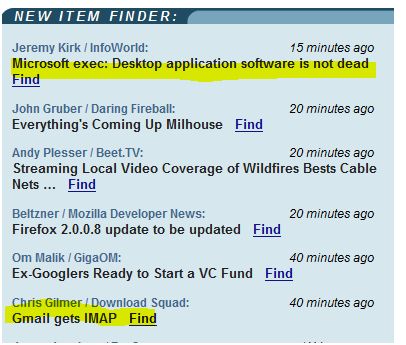
You’ll have to appreciate the irony of this TechMeme screenshot:

Microsoft’s Jeff Raiker defended desktop applications, mocking of Google for “backtrack(ing) on what we’ve been saying and to offer things like Gears in order to be able to be offline and or take advantage of global computing power”, reports Infoworld.

As if to support Raiker’s statement, just minutes earlier the hot item on TechMeme was Google’s Gmail offering IMAP. Yes, it’s there, if you don’t see it in your gmail account, log out and come back again.

Unlike POP access, which is basically a dumb download, IMAP synchronizes your mail folders (not just the Inbox) with your online account, and your read/unread status..etc are maintained both in the desktop client and online. In fact IMAP is an easy way to sync several desktop clients on multiple machines. (Note: Gmail does not have folders, but I assume labels would take their place - assume only, since I no longer use desktop email software)

Where’s the irony here? IMAP is clearly beneficial only if you use a desktop email client* with your gmail account, which is exactly Raiker’s point. And a bit of a personal irony: for over a decade I was a faithful Outlook user, mocking my friends who used web-based email (typically Yahoo) for their personal accounts. How could they live with such a dumb, slow service?

Well, times change: Outlook grew fat and slow, it needs a cornucopia of software fighting for CPU and memory: virus scanner, desktop search (Copernic), backup (Mozy), sync with other desktops (Foldershare), and who knows what else, all of which need updates that tend to fail … what a nightmare! I ditched the desktop and have never been more productive! I’m using Gmail natively, on the Web, and am quite happy with it, so IMAP means nothing to me. (Apparently I’m not alone, as evidenced by the 5-600 readers my client to Gmail migration guide written half a year ago is still getting every day). For all other productivity needs I use the Zoho Suite. Incidentally, little birdies are singing that Zoho Writer will soon have offline edit capabilitiessmile_wink.

Seamless online/offline computing, as it should be.

*Update (10/24). This post was my quick first reaction late last night, when the news first hit (in fact before it became official news). As Marc Orchant correctly points out, IMAP may very well be useful even if you don’t use a desktop email client, as it makes it really easy to use the client software on your mobile devices, and still have a sync’d Gmail on the Web.

Update #2, (10/24): Simplified Guide to Importing All Your Archive Email Into Gmail

Related posts: Download Squad, CyberNet, Mashable!, Infoworld, Zoho Blog, TechCrunch, ParisLemon, Moonwatcher, Ars Technica, Good Morning Silicon Valley,

Tags: , , , , , , , , ,

How to Import All Your Archive Email Into Gmail

Personal Productivity, SaaS March 28th, 2007

Update (10/24/2007): This post has become unexpectedly popular. After 12K page visits on day one, half a year later it still receives 5-600 visitors every day. However, now that Gmail supports IMAP, it has mostly become obsolete, so I suggest you read my Simplified Guide to Importing All Your Archive Email Into Gmail instead.

This post still has value, mostly in the comments section, where 120 or so readers help out each other on numerous related issues.

The original post:

I finally got sick of all the problems with Outlook, bit the bullet and transferred all my historical email online. Having spent a few days using “native” Gmail (vs. POP to Outlook) I already feel a lot more productive. Ironically I’m writing this on the very day when Yahoo announced unlimited storage - but I’m with Mike on this: message threading, labels and powerful search still make Gmail (the Google Apps flavor) the best choice for me. At least for now - but I keep an eye for the next incarnation of another product - will name it in due course (if you guessed which one, you’re probably right smile_shades).

Migrating to a new email service wouldn’t be complete if you couldn’t move all your old “baggage” with you. Apparently this is a burning problem for many, as a year-old post I wrote on the subject is one of my most popular hits ever. Back then I was still happily (?) POP-ing it down to Outlook, but wanted a fast all-in-one searchable archive, and Gmail was the perfect solution. But none of the solutions were perfect - until now. There are several “gmail-loader” tools on the Net, but some simply don’t work, others change the original sender information to the email account they use for the transfer – pretty bad, IMHO. My simple solution a year ago was using Thunderbird with a redirect extension. You can read the steps to achieve this here. Even this solution wasn’t flawless: gmail listed all historical mail with the date of the transfer - the original date was sill preserved and searchable, you just got the list display messed up. This still appears to be the biggest hurdle users face according to this new discussion on Lifehacker.

The final solution comes from Google themselves: now that they quietly expanded Mail Fetcher to Google Apps accounts, and removed the “non-gmail source” restriction, there is a simple yet perfect two-steps process to get it all done. Gmail Mail Fetcher fixes the date problem, so now in two steps and using two email accounts you can get it all right.

Step 1: Load all your client-based email to a temporary Gmail account either using my Thunderbird procedure, or, for an easier and elegant solution, get hold of an IMAP account. Gmail does not support IMAP, but my old provider, 1and1.com is not a bad choice: 5 email accounts, 2G each with IMAP support $0.99 / month.

In Outlook (or whatever email client) set up an IMAP account according to the instructions from your online provider. Then folder by folder copy all email into the Inbox on the newly created IMAP account. Don’t forget your Sent Mail folder: yes, that goes into the IMAP Inbox, too. Open all your archives and repeat the same process. Don’t worry if it takes a wile: Outlook doesn’t simply copy between local folders, it shoots up all your email to your temporary IMAP server on the web, and you’ll be constrained by your upstream speed (typically lower than downstream). If you have a spare PC, it’s a good idea to use that one.

Step 2: Now that your email is online, make sure POP access is enabled from your temporary account. If this is a gmail account (not IMAP), this is the setting you need:

“Enable POP for all mail (even mail that’s already been downloaded)”

Then in your Gmail target account - the final destination where you want to have all your archive mail - set up Gmail Mail Fetcher to pick up all mail from your temporary account. The dates will magically be fixed!

Here are Google’s instructions on setting up Mail Fetcher. Do NOT check the button for “Leave a copy of retrieved messages on the server” - you do want Mail Fetcher to “eat” them all from the temporary account, in fact that will be one of your indicators that the transfer is finished. Be prepared for a slow process - Gmail will poll your temporary account at 60-90 minute intervals, fetching 200 emails at a time. At Settings > Accounts you can follow the progress, but ignore the “nnn mails remaining” indicator, as it’s totally wrong. When all done, don’t be alarmed that the number of fetched emails is less than what you started with: your email client (and the IMAP server) counted individual emails, while Gmail will group them into thread, and reports the thread count, which could be significantly lower.

Last, but not least a word on labels / categories: if you nicely organized your Outlook archive in folders, Gmail has no way to preserve that structure. The trick here is to do Steps 1 and 2 in iterations, completely transferring one folder at a time. Then you can set a label for all your fetched email to match the original Outlook folder, and keep on changing it folder by folder.

Finally there is the issue of backup: after all we heard of disappearing Gmail… If you trust Gmail, just worried about what may happen to your individual account, there is always the option of setting up a shadow-gmail account which will fetch everything from your primary one. If you want a local archive, “just in case”, either run Outlook to periodically POP your mail down, or I believe Thunderbird has a plugin that allows it to be minimized to the system tray permanently and check the POP server in the background.

Update (3/28): One potential problem I forgot to mention is that all the fetched email becomes “unread”. Hard to believe, but Gmail does not have a “set all read” feature, and while there are some scripts, I’ve read stories of user accounts being suspended for 24 hours for scripting activity. If anyone has an idea how to changed all mail to “read” please comment below, I’ll bring it up here. Thanks.

Update to the update: The solution comes from Jason Brown, and it’s a surprise: Gmail has added a trick, I have no idea when. In Inbox (or wherever the messages are) choose “Select: All” from the list just above the message list. That will select all of the messages that are visible in the list - but here’s the surprise: At the top and bottom of the list where so it used to only say “All 100 conversations on this page are selected”, there is an additional clickable message: “Select all xxxx conversations in Inbox”, which will in fact select *all* the messages in the Inbox. Then choose “Mark as read” from the “More actions…” drop-down list. Job done! You can do this on Inbox, labels, or if you select All Mail, then on the entire account in a single step. Thanks, Jason!

Somewhat related: The Yahoo Mail announcement (unlimited storage) is picking up steam on Techmeme: Google Blogoscoped, PC World: Techlog,Techdirt, Google Operating System, Monkey Bites, CyberNet Technology News, michael parekh on IT, PaulStamatiou.com, Web Strategy, Download Squad, WebProNews, franticindustries, The Webpreneur, Search Engine Land, Liquidmatrix Security Digest, Conversion Rater, larry borsato, Gizmodo, CrunchGear, CenterNetworks and parislemon

Update (4/7): It’s somewhat obvious, but here’s a tip for backing up your archive online: create another (a third, fourth ..etc) Gmail account, configure Mail Fetcher there with your main account as the source, and voila! - you have a second, third..etc backup copy of all your email. I felt the need to spell this out upon reading Using Google Groups To Backup Gmail by The Google Tutor. It’s an interesting concept and nicely written up, but I think it’s built on fundamentally flawed logic:

  • If you’re worried about losing content in your particular gmail account, why not get a second /third backup as I described above? You have the full gmail functionality, which you don’t get with Groups.. What’s the chance of losing all the accounts at the same time? Besides, this method will backup your “Sent” mail, too, which forwarding to Groups can’t help with.
  • On the other hand, if you’re worried about Google in general, then why trust yet-another Google service? Groops is no safer than Gmail in that case.

Tags: , , , , , , , , , , , , ,

Radar Relay - What’s Happening in Office 2.0

Bay Area, Blogging, Business, Collaboration, Marketing / PR, SaaS, Social Networking, Software, Startups, Technology March 7th, 2007

I might as well have titled this post Radar Delay - first it was due last Friday, as part of series of reviews leading up to the Under the Radar: Office 2.0 event, but then fellow Enterprise Irregular Rod Boothby posted an “extra” article the same day, so I decided to wait till Tuesday. Yes that was yesterday, the day when Comcast, my ISP ironically responded to my push for On-Demand with a service outage.

smile_sad

But first things first: Web-based products received a surprise promotion from an unexpected source: Microsoft. As Phil Wainewright says on ZDNet:

“It’s astonishing that in the midst of a serious challenge from a new generation of Web-native office suites, Microsoft should give its rivals a helping hand by handicapping its own product so badly that it performs worse than an online product on a slow dial-up line.”

He is referring to the Outlook 2007 meltdown several users experienced:

You’d think I had just sprayed the inside of my poor mega-laptop with saltwater to induce non-stop fritzing. I’ve learned to meditate while Outlook ruminates over ten incoming POP messages of 69K. Perhaps it takes a few seconds over each incoming message or RSS feed to contribute to solving a Grand Challenge. Or it and Desktop Search have to play 333 iterations of rock-paper-scissors everytime a change has to be written

You can hardly accuse the above user with anti-Microsoft bias, since he is none other than Mini-Microsoft, who is obsessed with fixing Microsoft, the company. The Guardian, Dennis Howlett, Jason Busch, Tim Anderson, Chris Pirillo, Dan Farber, Phil Wainewright had similar experiences. Phil asks:

“But is it an even better fix to abandon Outlook and Exchange altogether and switch to an on-demand alternative?

My answer is a loud YES, and I’m making my point in Desktop Software: A Failed Model. Of course glitches occur in the On-Demand world, too, as we just witnessed Google Apps collapse soon after the announcement. We’re not quite there yet, but I share Rod Boothby’s view that we have passed a tipping point: while 2 years ago the ideal mix would have been desktop computing with additional online access, now I feel as a user I am better off mostly working online, with occasional offline access.

A somewhat doubtful friend, who happens to be the CEO of a cool company making web-based products sent this question:

“Do you really think people will use Word processors (in any significant number) through their web browser? “

Yes, I really do think, but why believe me? Listen to a US Government Agency instead: FAA May Ditch Microsoft’s Windows Vista And Office For Google And Linux Combo.

Some of the Under the Radar “Graduate Circle” sponsors posted significant news recently:

Talk about user base, Nielsen/NetRatings issued a press release claiming that Google Docs and Spreadsheets dominate web-based productivity tools since October, with a market share of 92 percent of unique visitors. Ismael Ghalimi did some research and proved them wrong concluding that Google’s market share may be closer to 50%. His take:

It is actually quite amazing that companies like ThinkFree and Zoho, with their ridiculously small marketing budgets, can play in the same league as mighty Google.”

Ismael is the creator of last years successful Office 2.0 Conference, and he is already preparing for Office 2.0 2007. But that’s in September - first we’ll have an exciting full-day conference:

Under the Radar: Why Office 2.0 Matters on March 23rd, in Mountain View, CA. Here’s the updated agenda and a list of presenting companies:

Approver | Blogtronix | Brainkeeper | Cogenz | ConceptShare | ConnectBeam | Diigo | EditGrid | Firestoker | InvisibleCRM | Koral | Longjump | Mashery | My Payment Network | Proto Software | Scrybe | Sitekreator | Slideaware | Smartsheet | Spresent | Stikkit | System One | Terapad | Teqlo | TimeSearch Inc. (Calgoo) | Tungle | Vyew | WorkLight | Wrike | Wufoo | Xcellery

The Conference is put up by DealMaker Media, which was until recently known as IBDNetwork. (Too bad I missed their Launch Party.)

Hope to see you there!

Update (3/09): Passing the baton to Stowe Boyd, here’s his Relay post.

Tags: , , , , , , , , , , , , , , , , , , ,

SAP Duet Video

Collaboration, ERP / CRM, Enterprise Software, Personal Productivity, Software July 5th, 2006

Having seen it at SAPPHIRE 06, I wrote about the importance of Duet for both SAP and Microsoft: “Duet’s importance by far exceeds what the limited number of currently available scenarios might imply: for SAP it means potentially tripling / quadrapling their user base, even if indirectly, and for Microsoft it’s another way to lock users into their Office suite.”

Jason Wood posted an insightful, analytical article on his blog with screenprints and all the bells and whistles.

Now there is an online video showing several scenarios. Use the pull-down menu to select the different tracks available.

Tags: , , , , , , , , , , , ,

Zoho - the “Safer Office”

Business, Collaboration, Software May 26th, 2006

(Updated)
It’s somewhat ironic that in the very days I’ve just written about Duet, the joint SAP-Microsoft product, I am seriously thinking of escaping from Microsoft-prison, and switching to the most promising WebOffice (Office 2.0) suite. Perhaps I am part of the trend that prompted Vinnie to consider Duet a “nice-to-have” only, but generally too little, too late. (I actually disagree with him, Microsoft’s lock on corporate users is far heavier than on individuals or small businesses.. but that’s another discussion). Update: I’ve had this post half-written for a while, and now we’re getting warned left and right: “use Word in safe mode“, “don’t open Word attachments from Outlook” - the fix from Microsoft is not expected until mid-June. WTF? That’s three weeks away! I am sick of it, just as much as I am sick of Outlook forgetting where the address book is again, freezing on me frequently, and I am especially sick of MS crippling my computer via the automatic Windows updates. While I can’t get rid of Windows (just yet), I can certainly get rid of buggy unsafe Office. Office 2.0, here I come!

But what’s Office 2.0? First of all, terminology: some call it Office 2.0, others Web Office: the point is to have web-based applications that are accessible via a browser, without any download, that will store the data files on the web, too (sorry AjaxWrite, you are out), thus making all my stuff accessible from any computer, any time (as long as I have Internet access).

I’ve been using Writely for a while, so when I first found Zoho Writer, it was a non-event: both editors are equally good, convenience wins, no need to switch. Are any of these Microsoft Word killers? Scoble would laugh it off, they would not stand a feature-by-feature comparison. So what? I am part of the 90% crowd that barely uses 10% of Word’s functionality anyway. Then I found Thumbstack, a web-based “mini-powerpoint”, that allows me to share and collaborate on presentations easily. It does not do a lot of fancy things, amongst them the animated transitions - great, so now I can focus on substance in my presentations, rather than disruptive entertainment. What about a spreadsheet? Zoho Sheet is easy to use, and is aesthetically pleasing - a point so often missed. Is it as poweful as Excel? Of course not. But my Excel knowledge is probably on the level of Lotus 1-2-3 anyway, so for me, Zoho is the Excel-killer. I also have Stikipad, Calcoolate, Box.net … and a few others - all in my Firefox “Office 2.0″ bookmark.

The only problem is, when I am not on my own PC, sometimes I forget what’s where… and of course my data files reside with the various service providers, and I am not completely at ease with my digital life being so fragmented. See where I am heading? This move to the Web is liberating, but the plethora of different services causes a bit of chaos. There are two basic concepts to deal with the chaos:

  • Some of the Web storage companies, like Box.net, Omnipage, Openomny ..etc .. offer their open API’s to application providers, or make one-to-one tight integration and propose that we store all our data centrally, no matter which application accesses them. This is definitely a step forward, in terms of data management, but I am still dealing with point applications, without any integration between them..
  • The second concept obviously is one-stop-shopping: is there one service that offers ALL the MS Office capabilities (with the common simplification we just discussed)? The answer is increasingly yes: Zoho is releasing new applications at an impressive speed, and they come with 1G of storage. While I would not have left Writely for the sake of Zoho writer only, the abililty to have everyting under one hood is just too damn tempting. I can have Writer, Sheet, Presenter (due out in the very near feature) all from the same source, my data is stored at the same place, and although currently these applications require individual registrations, in the near future they will be available with a single sign-on.

The Zoho guys also promise integration between these applications, and I have reason to believe they will be able to pull it off - after all, they already have the Zoho Virtual Office, which incorporates several of these offices in an integrated fashion. AdvantNet, a 500-person company (of which about a 100 work on Zoho) runs entirely on Zoho Virtual Office. Currently Virtual Office is a downloadable server-side product accessible via the Web, but Zoho will offer a Web-hosted version in the future. Without integration an Office 2.0 is not really Office 2.0, just a collection of online applications. (For those who may not remember, it took Microsoft long years to achieve some level of integration in their Office; for several years and throughout several releases “integration” was copy/paste, and quite painful as such.)

Zoho leverages a good deal between the different product offerings: some parts of Virtual Office make it into the individual applications, and vice versa, some of the standalone products become part of Virtual Office. For example 1G storage is now an implicit part of using the applications, but Zoho Drive will soon be available as a standalone service, too. Ah, and let’s not forget about Zoho Creator, which is exactly what the name suggests: an easy web-application creator. They even go beyond traditional Office functionality, into the transactional world buy providing Zoho CRM, a web based, or downloadable full-featured CRM system. Fully featured means supporting the full sales-related workflow, including vendors and purchase orders all the way to sales orders and invoicing… definitely more then just a “glorified contact manager” as the other guy is often referred to.

Listening and responding to customers is an area a lot of companies fail nowadays - Zoho seems to excel here, too. As part of research for this post I looked at earlier reviews, and several features reported “missing” from Writer are already included in the current product. There is a direct feedback link from the applications, and the longest response time I experienced was a few hours - sometimes it’s just minutes. In comparison, a question I posted on the Writely forum over two weeks ago is still unanswered - I guess those guys are busy finding their place in Google.

Summing it up: Zoho pumps out new applications at an amazing rate (check the site for a few more I haven’t even mentioned). While one by one most of their applications are comparable to at least another web-based application, I am not aware of any other company offering such a complete suite, with that level of support and the realistic prospect of integrating the applications soon. For me the choice is obvious: Zoho is my Office 2.0 Suite.

I’d like to touch on another issue, namely the value of being first, “original” vs. doing something better the second time - but for the sake of readability I’ll break it out to another post - soon.

Update (5/27): Assaf, who made blog conversations really trackable by bringing us co.mment read my post and gave the Zoho Virtual Office a try. His overall impression is positvie, but he also includes some criticism - just as he should. One thing I learned is that Zoho listens and moves fast. Another obeservation (of mine) is that they seem to move in iterations:

  • The downloadable Zoho Virtual Office has been around for a while (they run a 500-person company on it)
  • Now they are focusing on individual “Office” components making them available on the Web
  • Finally they will relase their own hosted version of Virtual Office probably incorporating may improvements they’ve made in the standalone products.

Update (6/6 -yes, the famous 666!): Google Spreadsheet is out, the blogosphere is abuzz, and I won’t have the time to write today, but at least I wanted to point to Ismael’s article, since he arrives to the same conclusions I did…

Tags: , , , , , , , , , , , , , , , , , , ,

SAP Without SAP - Duet

ERP / CRM, Enterprise Software, Personal Productivity, Software May 21st, 2006

(Updated)
More than a decade ago as Project Manager implementing SAP solutions I could not understand why the Client’s PM showed absolutely no interest in getting SAP-trained, or even attempting to log on to the SAP system. The only software product he ever touched was email. Years passed, and as I climbed the ladder, I found myself in a similar situation: locked in to Office products most of the time - just like millions of corporate employees whose daily life does not involve actively conducting transactions in their Enterprise system (SAP). They need to occasionally review/approve an item or react to an exception alert though. They are the (often management-level) employees who will not directly use SAP, even though timely access to SAP data is critical to their decision-making process - or to somebody else’s daily job.

Thanks to Duet they can now have the SAP data at their fingerprints without touching SAP itself. The long-awaited (and often promised ) SAP-Microsoft Office integration has finally arrived.

What was announced at last years’s SAPPHIRE in Europe as the Mendocino Project became a product, the second preview of which was released a week before SAPPHIRE 06 under the name Duet. Considering Microsoft’s role, just having a friendly name is a major achievement itself - it could have been something as friendly as Microsoft Office Extension to mySAP ERP 2004, Enterprise Version, Release 1.0. (read Microsoft Uber-Blogger Robert Scoble on product naming…)

I’ve seen a presentation of some of the current features as well as the roadmap for the next year, and also had a chance to sit down with Dennis Moore, GM of Emerging Solutions, who provided the blogger group with additonal insight.

Currently Duet (which is a boxed product) supports MS Office 2003 and mySAP ERP 2004, and there are 4 business scenarios available:

  • Leave Management
  • Time Management
  • Organization Management
  • Budget Monitoring

The final release is due in June 06 and will soon be followed by two value packs.

Value Pack 1 is due in Q3 06, new scenarios will include recruitment and travel management, enhanced analytics and support for mySAP ERP 2005, the current platform which, per Shai Aggassi will stay for years to come.

Value Pack 2 is expected in Q4 06 with some line of business functionality becoming available, e.g. Sales contacts, activity, Purchasing. MS Office 2007 will be supported.

It’s important to clarify that Office will not become the primary user interface of the “transactional worker”, i.e. you will not be creating product masters, running a shop-floor, etc. What Duet is, is a natural fit for a workflow (think of roles, limits ..etc) -based processing of messages and underlying data triggered by events, rules and exceptions.

Duet’s importance by far exceeds what the limited number of currently available scenarios might imply: for SAP it means potentially tripling / quadrapling their user base, even if indirectly, and for Microsoft it’s another way to lock users into their Office suite.
Duet is a step in SAP’s declared strategy of opening up access to their data and processes via a number of user interfaces, including Office, Portal, Mobile devices ..etc. It also fits in the “Sap Simplified” philosophy of owning the Business Processes and letting go of the user experience.

I tend to disagree with AMR’s concern on the large number of prerequisites: mySAP ERP 2004 or 2005, MS Office, Exchange server, and specific applications for some scenarios, e.g. E-Recruiting 6.0 for Recruitment Management, mySAP SRM 5.0 for purchasing management and CRM 4.0 for sales activity management. Yes, these are prerequisites, but the point is that even though Duet is a boxed shrink-wrapped (thanks for the comment!) product (I’ve seen a white box at SAPPHIRE, whether real or mock-up), it is not expected to sell as a standalone product on it’s own merits. It will expand access to additional users within corporate customers already using both SAP and Microsoft products, i.e. likely to already have the prerequisites.

Talk about prerequisites, pricing for Duet, and specifically the underlying SAP access will be an interesting challenge, since SAP’s model is typically charging $$$$ a smaller user base, while MS relies on $ from a large number of users - there has to be a model in between.

Not everyone in Microsoft welcomes Duet: the folks at MS Dynamics are clearly unhappy. They even produced a so-called White Paper comparing Duet to their own solution, Snap. “So-called”, because it does not even attempt to be unbiased. It praises Dynamics and Snap, while listing the dry facts about Duet, completely forgetting the fact that as Enterprise systems Dynamics and SAP are really apples and oranges… or I should say Ford vs. Rolls Royce.

IBM isn’t sleeping either: IBM to sing in Harmony with SAP to match Duet. IBM’s Harmony, which I haven’t had a chance to see, claims to play a similar role with Lotus Notes. It clearly is a competitive product, as far as Duet (which is jointly owned by MS and SAP) is concerned - but from SAP’s point of view, it’s just one more user interface, exposing more knowledge workers to SAP. The more the merrier.

Related blog posts:

Update (5/23) : Fellow SAPPHIRE blogger and SAP/MSFT investor Jason Wood posted a very detailed, thorough analysis on his blog - with screen prints and all the bells and whistles. Oh, and Jason - here’s my pick for a famous duo whose duet (pun intended) had an impact on the world. Update (5/30): Here’s an entire new blog dedicated to Duet (well, actually discussing Duet while promoting a 3rd-party solution). Thanks, Vinnie for pointing it out.

Tags: , , , , , , , , , , , , ,