Archives for 2007

post

How to Import All Your Archive Email Into Gmail

Update (10/24/2007): This post has become unexpectedly popular. After 12K page visits on day one, half a year later it still receives 5-600 visitors every day. However, now that Gmail supports IMAP, it has mostly become obsolete, so I suggest you read my Simplified Guide to Importing All Your Archive Email Into Gmail instead.

This post still has value, mostly in the comments section, where 120 or so readers help out each other on numerous related issues.

The original post:

I finally got sick of all the problems with Outlook, bit the bullet and transferred all my historical email online. Having spent a few days using “native” Gmail (vs. POP to Outlook) I already feel a lot more productive. Ironically I’m writing this on the very day when Yahoo announced unlimited storage – but I’m with Mike on this: message threading, labels and powerful search still make Gmail (the Google Apps flavor) the best choice for me. At least for now – but I keep an eye for the next incarnation of another product – will name it in due course (if you guessed which one, you’re probably right smile_shades).

Migrating to a new email service wouldn’t be complete if you couldn’t move all your old “baggage” with you. Apparently this is a burning problem for many, as a year-old post I wrote on the subject is one of my most popular hits ever. Back then I was still happily (?) POP-ing it down to Outlook, but wanted a fast all-in-one searchable archive, and Gmail was the perfect solution. But none of the solutions were perfect – until now. There are several “gmail-loader” tools on the Net, but some simply don’t work, others change the original sender information to the email account they use for the transfer – pretty bad, IMHO. My simple solution a year ago was using Thunderbird with a redirect extension. You can read the steps to achieve this here. Even this solution wasn’t flawless: gmail listed all historical mail with the date of the transfer – the original date was sill preserved and searchable, you just got the list display messed up. This still appears to be the biggest hurdle users face according to this new discussion on Lifehacker.

The final solution comes from Google themselves: now that they quietly expanded Mail Fetcher to Google Apps accounts, and removed the “non-gmail source” restriction, there is a simple yet perfect two-steps process to get it all done. Gmail Mail Fetcher fixes the date problem, so now in two steps and using two email accounts you can get it all right.

Step 1: Load all your client-based email to a temporary Gmail account either using my Thunderbird procedure, or, for an easier and elegant solution, get hold of an IMAP account. Gmail does not support IMAP, but my old provider, 1and1.com is not a bad choice: 5 email accounts, 2G each with IMAP support $0.99 / month.

In Outlook (or whatever email client) set up an IMAP account according to the instructions from your online provider. Then folder by folder copy all email into the Inbox on the newly created IMAP account. Don’t forget your Sent Mail folder: yes, that goes into the IMAP Inbox, too. Open all your archives and repeat the same process. Don’t worry if it takes a wile: Outlook doesn’t simply copy between local folders, it shoots up all your email to your temporary IMAP server on the web, and you’ll be constrained by your upstream speed (typically lower than downstream). If you have a spare PC, it’s a good idea to use that one.

Step 2: Now that your email is online, make sure POP access is enabled from your temporary account. If this is a gmail account (not IMAP), this is the setting you need:

“Enable POP for all mail (even mail that’s already been downloaded)”

Then in your Gmail target account – the final destination where you want to have all your archive mail – set up Gmail Mail Fetcher to pick up all mail from your temporary account. The dates will magically be fixed!

Here are Google’s instructions on setting up Mail Fetcher. Do NOT check the button for “Leave a copy of retrieved messages on the server” – you do want Mail Fetcher to “eat” them all from the temporary account, in fact that will be one of your indicators that the transfer is finished. Be prepared for a slow process – Gmail will poll your temporary account at 60-90 minute intervals, fetching 200 emails at a time. At Settings > Accounts you can follow the progress, but ignore the “nnn mails remaining” indicator, as it’s totally wrong. When all done, don’t be alarmed that the number of fetched emails is less than what you started with: your email client (and the IMAP server) counted individual emails, while Gmail will group them into thread, and reports the thread count, which could be significantly lower.

Last, but not least a word on labels / categories: if you nicely organized your Outlook archive in folders, Gmail has no way to preserve that structure. The trick here is to do Steps 1 and 2 in iterations, completely transferring one folder at a time. Then you can set a label for all your fetched email to match the original Outlook folder, and keep on changing it folder by folder.

Finally there is the issue of backup: after all we heard of disappearing Gmail… If you trust Gmail, just worried about what may happen to your individual account, there is always the option of setting up a shadow-gmail account which will fetch everything from your primary one. If you want a local archive, “just in case”, either run Outlook to periodically POP your mail down, or I believe Thunderbird has a plugin that allows it to be minimized to the system tray permanently and check the POP server in the background.

Update (3/28): One potential problem I forgot to mention is that all the fetched email becomes “unread”. Hard to believe, but Gmail does not have a “set all read” feature, and while there are some scripts, I’ve read stories of user accounts being suspended for 24 hours for scripting activity. If anyone has an idea how to changed all mail to “read” please comment below, I’ll bring it up here. Thanks.

Update to the update: The solution comes from Jason Brown, and it’s a surprise: Gmail has added a trick, I have no idea when. In Inbox (or wherever the messages are) choose “Select: All” from the list just above the message list. That will select all of the messages that are visible in the list – but here’s the surprise: At the top and bottom of the list where so it used to only say “All 100 conversations on this page are selected”, there is an additional clickable message: “Select all xxxx conversations in Inbox”, which will in fact select *all* the messages in the Inbox. Then choose “Mark as read” from the “More actions…” drop-down list. Job done! You can do this on Inbox, labels, or if you select All Mail, then on the entire account in a single step. Thanks, Jason!

Somewhat related: The Yahoo Mail announcement (unlimited storage) is picking up steam on Techmeme: Google Blogoscoped, PC World: Techlog,Techdirt, Google Operating System, Monkey Bites, CyberNet Technology News, michael parekh on IT, PaulStamatiou.com, Web Strategy, Download Squad, WebProNews, franticindustries, The Webpreneur, Search Engine Land, Liquidmatrix Security Digest, Conversion Rater, larry borsato, Gizmodo, CrunchGear, CenterNetworks and parislemon

Update (4/7): It’s somewhat obvious, but here’s a tip for backing up your archive online: create another (a third, fourth ..etc) Gmail account, configure Mail Fetcher there with your main account as the source, and voila! – you have a second, third..etc backup copy of all your email. I felt the need to spell this out upon reading Using Google Groups To Backup Gmail by The Google Tutor. It’s an interesting concept and nicely written up, but I think it’s built on fundamentally flawed logic:

  • If you’re worried about losing content in your particular gmail account, why not get a second /third backup as I described above? You have the full gmail functionality, which you don’t get with Groups.. What’s the chance of losing all the accounts at the same time? Besides, this method will backup your “Sent” mail, too, which forwarding to Groups can’t help with.
  • On the other hand, if you’re worried about Google in general, then why trust yet-another Google service? Groops is no safer than Gmail in that case.
post

"Windows Update Disables Firefox" Issue Resolved

My Windows Update Disables Firefox as Default Browser post was read by over ten thousand readers just here on the blog, and I can’t even follow secondary sources, as it got reposted in several other blogs, hit the front page of reddit …etc.

Best of all though was a private email inquiry I received from Gary Schare,Director, Internet Explorer Product Management at Microsoft.   I gave him all the information I could, the MS team then tracked down the issue, and found that FireFox was still the default browser after the update, but it’s checking mechanism thought it wasn’t.  Apparently the fix was on Mozilla’s side, and Microsoft and Mozilla have worked together in resolving the issue.

I have to say I find Microsoft attention, as well as the two organizations collaboration exemplary.  The full story is best explained by quoting Gary verbatim – thanks for agreeing to it.

“Hi Zoli,

Thanks for providing the information on the updates you installed before experiencing the Firefox default browser prompt.  We did a thorough investigation and have tracked down the cause of the issue. Before I explain the actual cause, I do want to let you know that we also determined that at no time did Firefox ever stop being the default browser on the machine. It mistakenly thought it was no longer the default and prompted users, but every entry point that triggered the default browser would still launch Firefox.

This issue is actually the result of a change in Firefox (added in Firefox v 2.0.0.2) and how it responds to Office changing a Windows registry key during the updating process.  Whenever Office updates, it also verifies that many supporting registry keys are set to expected values (this is the same action that occurs when you use the “Detect and Repair” functionality in Office).  The modification of registry keys during updating has happened throughout the lifecycle of Office 2003, and the Outlook Junk Email Filter delivered via Microsoft Update this month triggered this issue simply because it was the first update of Office since Firefox 2.0.0.2 became available, not because this specific update did anything differently.

On the basis of your report, the Office team has worked with Mozilla and believe they’ve arrived at an answer that will address the issue.  The Mozilla folks have told us that the change will be in an upcoming version of Firefox, and it is tracked in this bug report on the Mozilla site.  Thanks again for bringing this to our attention. Your blog was the trigger of the investigation and we’re all glad we were able to find the solution so quickly.”

Nicely done.  Again, thanks for your attention and for fixing it.


post

Contextual Advertising Blunders

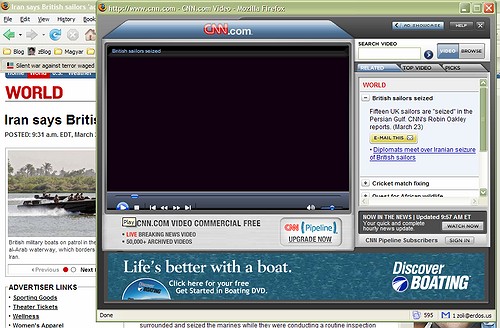
Here’s another case of contextual advertising producing really, really inappropriate results:

I was watching the CNN video about Iran kidnapping British Navy personnel from their boats, when the ad in the bottom slid in: “Life is better with a boat.  Discover Boating”.  Yeah, right.  I’m sure the 15 British hostages agree right now.

A previous case of unfortunate ad placement also includes boats. Yahoo Headlines talk about the Katrina Catastrophy, Navy ships and rescue teams rushing to the region, while the associated ad reads: “Down the Shore… Enjoy the last days of summer.”

By far not as tasteless as this one from Southern Comfort:  “Born in New Orleans (where anything can happen)” – right after Katrina.

(credit to Jeff Clavier)

This last one actually goes beyond just a “blunder”: as proven by a job ad, it was not a case of unfortunate timing, but intentionally tasteless, exploitative advertising.

Related posts:

post

$4 and Your Soul

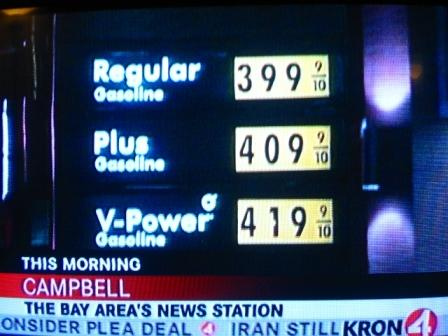
Screen shot from KRON TV:

That’s $4.19 for a gallon of premium in Campbell, CA.

Is this next?

(from BusinessWeek)

Update: I wonder how effective this GM ad would be now:


post

Why Did the Butterfly Cross the Road?

“Why did the chicken cross the road?” is one of the oldest jokes around.  But what about butterflies?

 When they cross the road, traffic halts.  At least in Taiwan:

“Taiwan is to close one lane of a major highway to protect more than a million butterflies, which cross the road on their seasonal migration.
The purple milkweed butterfly, which winters in the south of the island, passes over some 600m of motorway to reach its breeding ground in the north.

Many of the 11,500 butterflies that attempt the journey each hour do not reach safety, experts say. Protective nets and ultra-violet lights will also be used to aid the insects.”

(Full story: BBC News)


post

Sell Software – Ship T-Shirts

That’s a line stolen from Atlassian’s CEO:

“When you’re selling virtual goods, having something concrete to tie it to is a good idea. That’s why we ship t-shirts all around the planet on a monthly basis. If you buy any top-tier Atlassian product, we ship a t-shirt to your desk.

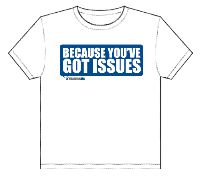
If you’re going to make a corporate t-shirt, make it fun like Tangosol’s “Coherence – Don’t get fluster clucked”, our “JIRA – Because You’ve Got Issues” etc. If it’s boring, people are that much less likely to wear it.”

Atlassian just issued T-shirt 2.0, and indeed, they are funsmile_teeth (see all of them here.)

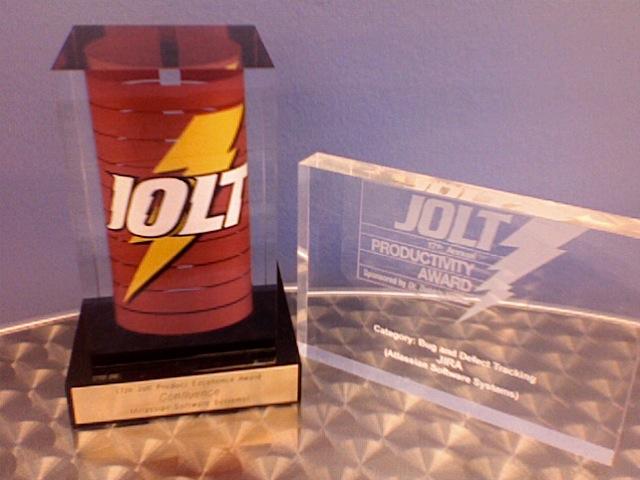
P.S. They won yet another award – but hey, that’s not even news anymore smile_wink

post

Do We Need Another Web Meeting App?

Does the World need yet another “webex-killer“?  The answer is probably no. Other then Webex, whose name became a synonym to web-conferencing, there is  GoToMeeting, VyewTeamslide, DimDim  1videoconference , Vyew, Live Meeting, Thinkature and probably quite a few more I forgot about.

So why on Earth has Zoho announced Zoho Meeting, entering such a crowded market?  One answer is that it’s a “software-making machine”, turning out new product regularly, so why not … but I think there’s more.

Zoho Meeting has a few unique features, and as usual, TechCrunch provides a good review, so I won’t even attempt to “compete” with them.

smile_wink  I’d rather lament on what this really means.

After a year of pumping out standalone products ( I think the count is at 15 for now) this year Zoho will start focusing on tying them together.  This means integrating them, as well as some external products, create workflows and use some “glue” products in the process.  Mail, Wiki are such glue products (both are going through enhancements), and to some extent so is Meeting, as well as Chat.  They will enhance collaboration in context, while you work on your document, spreadsheet, presentation..etc.  The video below shows how Meeting is embedded in Zoho Show:


If you watched the video you may have noticed a spreadsheet in the background, while Raju was talking about embedding Meeting in Chat, which in turn will become part of all other applications. While the integration of Chat into Zoho Writer was somewhat of a non-event, I can give you a sneak preview of how it will work in Zoho Sheet, where the consequences are far more significant.


What this means is that Zoho Sheet, which recently added the capability to plot 21 different types of charts now supports real-time collaboration with instant updates on the individual cell level – this has been Editgrid’s competitive advantage so far.

This is just the beginning – keep an eye for Meeting, Chat and other “glue” products making our online life easier.

Last, but not least, several of the companies mentioned here will present at the Under the Radar Conference tomorrow, so if you have a free Friday, you may want to register here – today is the last chance to get $100 off.

(Disclosure: I am an Advisor to Zoho) 


post

Startup Epicenter in Mountain View, CA

No, it’s not the Big One, not even an earthquake… for three days next week, Startup Epicenter by SF Bay Ventures becomes the place to be in Mountain View.  

It’s a 3-day intensive workshop and startup demo event, opened by VC Legend Vinod Khosla‘s keynote on The Killer App vs. The Killer Capability, followed by workshops, panel discussions – see the agenda here.

Each day concludes by a VC/Angel panel judging the pre-approved startup company presentations.  To be selected to present, you’ll need at least 3 of the following:

  • 1-2 page executive summary
  • web page – secure view acceptable
  • link to product demo
  • blog link
  • video on YouTube,etc.
  • Customer Referral/Testimonial
  • 1-2 paragraph description (your 30-45 sec. pitch)
  • Financial Estimates
  • powerpoint funding pitch presentation

…but not a Business plan! 

Presenting startups receive e-mail consultation prior to and after the event.

The first day, March 27th will be a very full day; the 28th and 29th are afternoon sessions.  Participants can pick and chose or attend the full program.  Register here.

Update (3/24): Check out Stowe Boyd’s interview with Scott Lane, Event Organizer. 

post

"Personalized" Mass Email

It’s always nicer to receive a personal email than mass PR-releases.  Like the letter below:

“Hi Zoli,

 I wanted to make sure you saw this today…”

Damn mail-merge, the color gives him away… smile_party


post

They Shouldn’t.

BusinessWeek Online: How should companies hire bloggers?

They shouldn’t.  Find them within.